
Contents
This topic describes how to configure a Query Table using the options in the Properties view for the Query Table data construct.
Query Tables are containers for sharing data and maintaining state within an EventFlow application. They accomplish this by storing tuple values outside of any stream. At runtime, a Query Table can have its values modified by one or more Query operators that write to, read from, delete from, or update their associated Query Table.
StreamBase applications can share Query Tables within modules, between modules, and across containers. Query Tables can be associated with multiple Query operators, but each Query operator can be associated with only one Query Table.
A Query Table that actually stores the data is called a concrete Query Table.
A Query Table that refers to the data stored in a concrete Query Table is called a placeholder Query Table. A placeholder Query Table defines a relationship to either a concrete, or another placeholder, Query Table in one of these ways:
-
using a connection path (Defined by Connection Path)
-
using a module reference (Defined by Calling Module)
See Properties: Table Settings Tab for more details.
Placeholder Query Tables cannot always be fully typechecked by Studio. For example, a placeholder Query Table using a connection path will not have access to the target Query Table until runtime. This means that placeholder Query Tables can cause runtime failures if typecheck detects inconsistencies.
A Query Table is usually associated with one or more Query operators, which are described in Using the Query Operator.
The Query Table does not have input and output ports, and the flow of tuples in your application do not directly flow through a Query Table. Instead, Query Tables receive and provide data to and from Query operators, and in advanced usage, via APIs. Use the Query operator to read from, write to, delete from, or update your Query Table.
Before a Query operator can be configured, you need to draw an association arc between the operator and a Query Table. To draw the association arc:
-
Select the gray square on the bottom port of the Query operator, and hold down the mouse button.
-
Drag the mouse pointer to the gray square at the top of the Query Table data construct.
-
Release the mouse button.
If you mark a Query Table as shared, then outer modules can run queries on the shared Query Table in an inner module and vice versa. In this case, you draw an association arc between a Query operator and the Module Reference, both in the outer module.
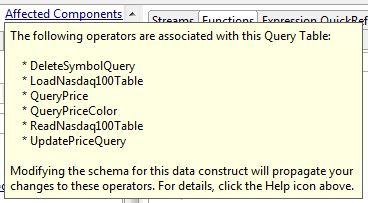
At the top of the Properties view for a Query Table data construct, there is an Affected Components link. Click this link to display a pop-up window that lists the Query operators in the current module that are associated with the selected Query Table. Click anywhere outside the pop-up to close the pop-up.
The following example shows an Affected
Components pop-up window that shows the Query operators
associated with the Nasdaq100Table Query Table in the
sample
application, which is a member of the
operator sample group included in StreamBase.
The EventFlow diagram for the sample module looks like this:
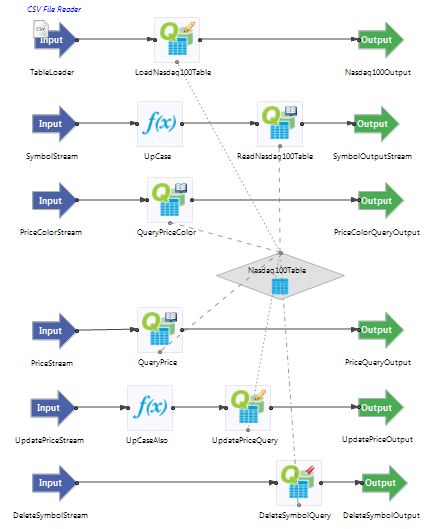
Notice that the Nasdaq100Table Query Table is
referenced by six Query operators, two of which write into the table,
three of which read from the table, and one that deletes rows in the
table.
Name: Use this required field to specify or change the name of this instance of this component. The name must be unique within the current EventFlow module. The name can contain alphanumeric characters, underscores, and escaped special characters. Special characters can be escaped as described in Identifier Naming Rules. The first character must be alphabetic or an underscore.
Description: Optionally, enter text to briefly describe the purpose and function of the component. In the EventFlow Editor canvas, you can see the description by pressing Ctrl while the component's tooltip is displayed.
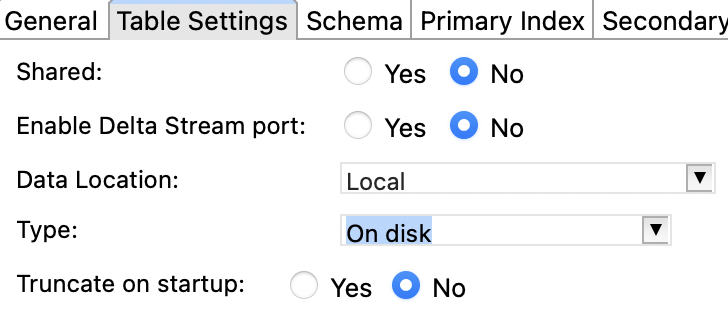
Use the Table Settings tab to specify this Query Table's type and behavior. The following image shows the tab with all default values:
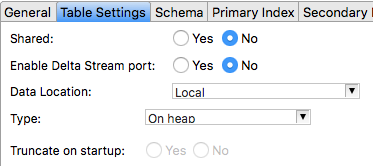 |
The following table describes the Table Settings tab options.
| Property | Default | Description | |
|---|---|---|---|
| Shared | No |
Controls the visibility of this Query Table across different modules. Use this setting to mark the data in this Query Table as accessible from outside the module that defines it. Setting to No restricts this Query Table's visibility to the module that defines this Query Table. This is the default setting. Setting to Yes marks this Query Table in the current module as accessible to a Query operator in a separate module or container. Sharing can be enabled for both concrete and placeholder Query Tables. When a Module Reference refers to a module that contains a Shared Query Table, its icon displays a gray data port on its top edge, similar to the data port on top of a Query Table icon. You can connect a Query operator in a separate module to the shared table by means of this data port. ImportantStreamBase does not support exporting a Query Table from a Module Reference with a multiplicity setting greater than 1. See Concurrency Options for details. |
|
| Enable Data Stream port | No | When you select Yes, the Query Table's icon gains a Delta Stream port on its right vertex. Delta streams are supported on both concrete and placeholder Query Tables. An event tuple is emitted on the Delta Stream port for every change to the table's contents. See Using Delta Streams for Query Tables for the schema of these event tuples. | |
| Data Location | Local | Specifies where data for this Query Table can be found. The
options are:
|
|
| Type | In heap | Specifies the storage type of this Query Table. The options
are:
|
|
| Connection Path | No default value | This field is only visible if Data
Location is set to Defined by
connection path.
You must enter a path to a shared Query Table to connect to this placeholder table. The
connection path notation is
The
path to the shared Query Table always specifies the container
name, even if it is The connection path is validated at runtime. |
|
| Truncate on startup | No | This field is only visible if Data
Location is set to Local and it is disabled unless Type is On disk.
If set to
If set to
This setting can interact with settings on the Initial Contents tab. |
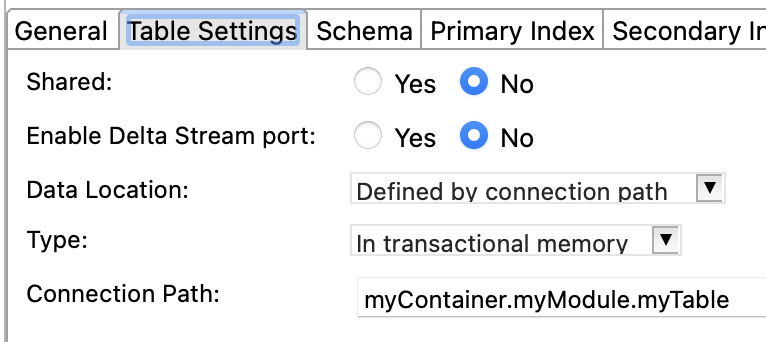
The Data Location value impacts which fields are enabled in the Properties: Table Settings Tab.
| Property Name | Local | Defined by Calling Module | Defined by Connection Path |
|---|---|---|---|
| Shared | Enabled | Enabled | Enabled |
| Enable Delta Stream port | Enabled | Enabled | Enabled |
| Type | Enabled | Disabled | Disabled |
| Connection Path | Not displayed | Not displayed | Displayed |
| Truncate on startup | Displayed and enabled if Type is On disk. | Not displayed | Not displayed |
The Data Location value also impacts which Query Table tabs are enabled.
| Tab Name | Local | Defined by Calling Module | Defined by Connection Path |
|---|---|---|---|
| General | Enabled | Enabled | Enabled |
| Table Settings | Enabled | Enabled | Enabled |
| Schema | Enabled | Enabled | Enabled |
| Primary Index | Enabled | Enabled | Enabled |
| Secondary indexes | Enabled | Enabled | Enabled |
| Data Distribution | Enabled if Type is In transactional memory | Disabled | Disabled |
| Initial Contents | Enabled | Disabled | Disabled |
A private concrete Query Table has this EventFlow canvas icon:
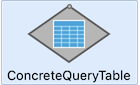 |
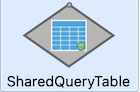
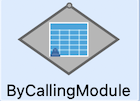
The Query Table icon is overlaid with decorations to distinguish other table characteristics.
When a table is shared, it has a green dot overlay in its lower right corner.
 |
When a placeholder table is defined by a calling module, it has a blue triangle overlay in its lower left corner.
 |
When a placeholder table is defined by a connection path, it has a blue chain overlay in its lower left corner.
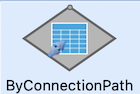 |
In addition, a Query Table that implements a StreamBase interface is
shown with a boxed uppercase I in the lower right
corner of the icon's tile:
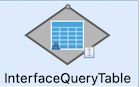
The following table describes the Schema tab options.
Both concrete and placeholder Query Tables must have a schema defined. The schema defined for a placeholder Query Table must match the schema of the associated concrete Query Table if the concrete Query Table is in a hygienic module. If the associated concrete Query Table is in a non-hygienic module, the specified placeholder Query Table schema overrides the schema of the associated Query Table. See Hygienic and Non-Hygienic Modules for more details.
| Property | Default | Description |
|---|---|---|
| Table Schema | <Private Table Schema> |
Either choose an existing table schema or define a private table schema for this table. The default setting enables you to define a schema in the grid below. You must also define your table's indexes using the Primary Index and Secondary Indexes tabs. Private schema definitions are local to this Query Table and to the containing module. You can instead select the name of a previously-defined table schema from the dropdown list. The schema and index definitions for this Query Table are taken from the specified table schema. As a table schema defines indexes, you cannot change them using the Primary Index and Secondary Indexes tabs. 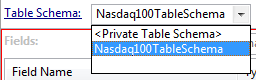 The Table Schema drop-down list only lists table schema names if the containing module defines or imports at least one table schema. Table schemas are discussed further in Using Table Schemas. |
| Fields | Inherited or empty | Unless you have specified a for this table, the Fields drop-down is dimmed, and the fields of the schema grid are populated by the table schema and are non-editable. When enabled, the Fields drop-down lets you choose from available named schemas. To configure a local schema, set the Fields drop-down to . Enter a private schema for this table and then define indexes for it, as described below. |
Use the Schema tab to select a previously defined table schema, which replaces both schema and index settings for the entire table. If you specified an existing Table Schema, then the Fields drop-down is disabled. In this case, the specified table schema is responsible for providing this Query Table's schema. If you specify no Table Schema, you can select a previously-defined named schema, which provides only the schema definition, leaving the index settings to you.
If the drop-down names an existing
schema, then its fields are populated in the grid beneath it. You can
select and copy the fields but cannot edit them. If you set the dropdown
to <Private Table Schema>, then you can define
the schema for this Query Table, as follows:
-
Type text into the optional Schema Description field at the bottom of the Schema tab to document your schema.
-
Select in the lower drop-down list. (The drop-down list provides no other choices unless you have defined or imported at least one named schema for the current module.)
- Private Schema
-
Populate the schema fields using one of these methods:
-
Define the schema's fields manually, using the
 button to add a row for each schema field. You must enter values for the Field Name and Type cells. The Description cell
is optional. For example:
button to add a row for each schema field. You must enter values for the Field Name and Type cells. The Description cell
is optional. For example:
Field Name Type Description symbol string Stock symbol quantity int Number of shares Field names must follow the StreamBase identifier naming rules. The data type must be one of the supported StreamBase data types, including, for tuple fields, the identifier of a named schema and, for override fields, the data type name of a defined capture field. See Using the Function Data Type for more on defining function fields.
-
Add and extend a parent schema. Use the
button's Add Parent Schema option to select a parent schema, then optionally add local fields that extend the parent schema. If the parent schema includes
a capture field used as an abstract placeholder, you can override that field with an identically named concrete field. Schemas
must be defined in dependency order. If a schema is used before it is defined, an error results.
-
Copy an existing schema whose fields are appropriate for this component. To reuse an existing schema, click the
 button. (You may be prompted to save the current module before continuing.)
In the Copy Schema dialog, select the schema of interest as described in Copying Schemas. Click when ready, and the selected schema fields are loaded into the schema grid. Remember that this is a local copy and any changes you make here do not affect the original schema that you copied.
Use the , , and buttons to edit and order your schema fields.
-
- Named Schema
-
Use the dropdown list to select the name of a named schema previously defined in or imported into this module. The drop-down list is empty unless you have defined or imported at least one named schema for the current module.
When you select a named schema, its fields are loaded into the schema grid, overriding any schema fields already present. Once you import a named schema, the schema grid is dimmed and can no longer be edited. To restore the ability to edit the schema grid, re-select
Private Schemafrom the dropdown list.
If you specified the name of a table schema in the Table Schema drop-down in the Schema tab, the Primary Index tab shows the primary index field or fields defined in the table schema. You cannot edit the index fields.
If you specified the name of a table schema in the Table Schema drop-down, then you must use the Primary Index tab to define the primary index field for this Query Table.
Query Tables must have a primary index to be valid. Use the Primary Index tab to select a schema field or fields that will be used to look up values in the Query Table. Usually, the primary index field or fields are those that the associated Query operators will use most often. For example, in a table that stores stock trade information, the field that holds the stock symbol is likely to be queried often.
Both concrete and placeholder Query Tables must have a primary index defined. The primary index defined for a placeholder Query Table must match the primary index of the associated concrete Query Table if the concrete Query Table is in a hygienic module. If the associated concrete Query Table is in a non-hygienic module, the specified placeholder Query Table primary index overrides the primary index of the associated Query Table. See Hygienic and Non-Hygienic Modules for more details.
In the Available Fields list, double-click each field that you want to add to the index (or select a field and click the right arrow button). If a Query Table's schema includes fields of type list or tuple, you can use a subfield as the field specification.
Tip
A timestamp field is usually a poor choice for a Query Table primary index, because multiple input tuples can have identical timestamps, and primary index values must be unique. Instead of a timestamp, consider using a Sequence operator to generate unique IDs. See the Sequence operator sample for a simple illustration of this technique.
In the Available Fields list, double-click each field that you want to add to the index (or select a field and click the right arrow button).
Use the Index Type control to select how keys are indexed for table read operations:
- Unordered, no ranges (hash):
-
Keys are unsorted, and they are evenly distributed (hashed) across the index. A hash index is used for accessing keys based on equality, and are generally best for doing simple lookups.
- Ordered, with ranges (btree)
-
Keys are sorted. A btree index is used when output ordering and range queries are desired. Note that the sort depends on the order of the fields in the index keys.
The relative performance of hash and btree methods varies depending on many factors, including the distribution of keys in your dataset. If you are in doubt, try both methods to determine which produces the fastest lookup times for associated Query operators. Also remember that StreamBase Studio allows you to specify a key range and sort order in an associated Query operator when you use a btree ordered index, but not when using hashed access.
If you specified the name of a table schema in the Schema tab, then entries in the Secondary Indexes tab are preset by the table schema, and you cannot edit or add to them.
When the Table Schema is set to
<Private Table Schema>, you can use the
Secondary Indexes tab to define one or more secondary
index fields for this Query Table.
Secondary indexes specify a field or set of fields that are used to look up values in the Query Table. Secondary indexes are optional; if used, no secondary index field can be the same as the primary index field. If a Query Table's schema includes fields of type list or tuple, you can use a subfield as the field specification.
Both concrete and placeholder Query Tables may have secondary indexes defined. The secondary indexes defined for a placeholder Query Table must match the secondary indexes of the associated concrete Query Table if the concrete Query Table is in a hygienic module. If the associated concrete Query Table is in a non-hygienic module, the specified placeholder Query Table secondary indexes override the secondary indexes of the associated Query Table. See Hygienic and Non-Hygienic Modules for more details.
For each secondary index:
-
Click to display the Edit Secondary Index dialog.
-
In the Available Fields list, double-click each field that you want to add to the index.
-
Click the button.
Tip
Timestamp fields are usually poor choices for a Query Table secondary index, because multiple input tuples can have identical timestamps. Instead of a timestamp, consider using a Sequence operator to generate unique IDs. See the Sequence operator sample for a simple illustration of this technique.
Fields are indexed using the btree method by default. Just as with primary indexes, you can also use the hash method. To change the index type, select Ordered or Unordered at the bottom of the Edit Secondary Index dialog. You can intermix hash and btree indexes in the same Query Table. For example, the primary index could be hash and a secondary index could be btree.
Secondary indexes make write and delete operations slower, because each secondary index in the Query Table must be updated with every change to the Query Table.
You can use an expression as part of specifying the field or fields that comprise a secondary index for a Query Table. The expression must be statically resolvable, and must contain the name of at least one field in the Query Table's schema. A sample in the Operator Sample Group illustrates this feature.
When you select In transactional memory in the Table Settings tab, a link to Configure data distribution appears if Data Location is Local. Clicking this link opens this Data Distribution tab.
If you select the Distribute Data check box in this tab, the current Studio project must specify the name of a data distribution policy in a configuration file of type node with root object NodeDeploy. See Transactional Memory and Transactions for a discussion of these concepts.
As of StreamBase 10.4.0, the default provides the convenience of setting a policy for you. Depending on your situation, using the default may suffice in lieu of specifying the name of a configuration file-defined data distribution policy. See Default Availability Zone and Data Distribution Policy for the default's policy settings.
Data distribution can only be specified on concrete Query Tables.
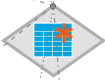
Use the Initial Contents tab to specify the starting point contents of this Query Table at module startup. Query Tables that load initial contents at startup show a red asterisk overlay:
The options on this tab are only available when you have specified in the drop-down on the Table Settings tab.
Initial contents can only be defined for concrete Query Tables.
The Initial Contents settings interact differently with the Query Table Type defined on the Table Settings tab:
- In heap
-
Query Tables running in heap can always have their initial contents loaded with this feature, because such tables are always initialized at the start or restart of the containing module.
- On disk
-
Carefully consider the consequences of using this feature in conjunction with an on-disk Query Table:
-
The loading of initial contents occurs with a Write-Update operation based on a primary key match. This means that:
-
Any matching rows in the on-disk table are overwritten with the initial contents version of that row.
-
Any matching row that was deleted in the last run of the module (whether that row was previously loaded initially or inserted during that run) is restored to its initial contents state.
-
Let's say you load 100 rows from an initial contents file, and then add 25 more rows, update 10 rows, and delete 5 rows. Restarting the containing module does not overwrite the first 100 rows. Instead, it looks for 100 primary key matches anywhere in the table's current 120 rows and overwrites matching rows with initial contents data — whether or not those matching rows were updated in the previous run. Some deleted rows may be restored. In summary, on module restart, the Query Table contains 120 to 125 rows, depending on whether any deleted initial rows were restored. However, the table does not have the same contents as when the module last ended.
-
-
If your goal is to truly wipe the Query Table clean and reload it with the same initial on-disk contents every time, then combine this Initial rows feature with the Table Settings tab's Truncate on startup setting.
-
- In transactional memory
-
In general, Query Tables configured to run in transactional memory have the same considerations and cautions as those running on disk, except:
-
The Truncate on startup option is not available.
-
Such tables can be configured to be accessed from more than one node, or can be replicated into more than one node.
For these reasons, configuring the Initial Contents feature is strongly discouraged for Query Tables configured to run in transactional memory.
-
The Initial Contents tab's options are:
- Be empty
-
The default option is to not load the Query Table at module start time. Select this option under the following circumstances:
-
If you want this table to start as a clean slate at module start time, to be populated by upstream operators as the containing module runs.
-
If this table will be loaded at start time by an external operator such as a CSV File Reader adapter.
-
- Load initial rows from a resource file, CSV
-
Select a resource file in CSV format, which must already exist on this module's resource search path. The initial loader's CSV reading capabilities are a strict subset of the features available in the CSV File Reader adapter and the Feed Simulation CSV Data File Option. The initial loader CSV file has the following restrictions:
-
You must use commas as the field separator.
-
The file's columns must exactly match the schema of the Query Table in number and data type for each field.
-
The
nullkeyword is not accepted, but you can specify empty fields with a pair of adjacent quotes:"" -
Date format strings are not interpreted as timestamp fields. Specify the exact literal time instead.
-
Specify the fields of the tuple data type as a comma-separated list between double quotes. For example, for the schema
(a int, b (b1 int, b2 int), c
                                                                string)
, enter CSV rows like the following:3, "10, 20", alpha 4, "20, 30", beta
If the CSV file to be loaded contains a header row, select the check box, otherwise leave it unchecked.
The
operatorssample group includes a CSV file,ResourceFiles/NASDAQ100.csv, in the correct format for use as an initial table loader. Use this file with theQuery.sbappmodule, replacing the CSV File Reader adapter currently in place. -
- Load initial rows from a resource file, TSV
-
TSV stands for tab-separated values. TSV files follow the same rules as CSV files, but use a hard tab character as the field separator instead of a comma. This includes using a tab character between the subfields of a tuple field.
- Load initial rows from a resource file, JSON
-
Select a file from this module's resource search path, containing one or more JSON objects, each on its own row. JSON objects are defined on json.org as a set of comma-separated field-value pairs, with pairs separated by a colon, and with the entire object surrounded by braces. Strings in JSON are surrounded by double quotes. There is no header row in JSON format.
For example, following are the first two rows of the
NASDAQ100.csvfile expressed in JSON object format, with truncated Description fields for readability. The two lines are shown here on four lines for publication clarity:{ Name:"Activision Blizzard, Inc",Symbol:"ATVI",Price:12.71,Color:"red", Description:"Activision Blizzard ..."} { Name:"Adobe Systems Incorporated",Symbol:"ADBE",Price:28.43,Color:"yellow", Description:"Founded in 1982, ..."}To specify the subfields of a field of type tuple in JSON object format, use a nested pair of braces. For example, for the schema
(a int, b (b1 int, b2 int), c
                                                   string)
, enter JSON rows like the following.{a: 3, b: {b1: 10, b2: 20}, c: "alpha"} {a: 4, b: {b1: 20, b2: 30}, c: "beta"}You can also use JSON array format as defined on json.org, like this example:
[3, [10, 20], "alpha"]
[4, [20, 30], "beta"]
In both JSON object and array formats, white space is ignored, but you must use commas to separate tuple fields.
- Load initial rows from the text below, CSV, TSV, or JSON
-
Select this option and type one or more rows of data in CSV, TSV, or JSON format, using the same rules as for the files described above.
If you provide a CSV, TSV, or JSON loader file whose fields fail to match the table's schema, or if you type mismatched rows in the Initial Contents tab, a typechecking error is shown in associated Query operators as well as in the Properties view for the Query Table itself.
If the key field for a tuple record being written to a Query Table is null, the tuple is stored. In a Query Table with a sorted (btree) index, the null-keyed stored records are evaluated as less (in value) than other non-null records. On a subsequent read (lookup) operation, the null-keyed tuples can be located. For more information, see Using Nulls.