
This section steps through the process of generating and running a simple EventFlow Fragment Unit Test for the Best Bids and Asks sample delivered with StreamBase.
-
In StreamBase Studio, load the Best Bids and Asks sample:
-
From the top menu, select >.
-
Select
bestbidsandasksfrom the Applications category. -
Click .
Studio creates a project folder named
sample_bestbidsandasks. If you loaded the sample previously, Studio createssample_bestbidsandasks1. -
-
If you make edits, make sure the application is free of typecheck errors.
-
Click the
 Run button. This opens the SB Test/Debug perspective and runs the application.
-
Use the Manual Input view to send the following input tuple:
time_int 20100930 symbol IBM bid_price 125.07 bid_size 3000 ask_price 139.45 ask_size 2000 sequence 467 -
Keep a record of the exact input tuple you sent, and of the results you see on output streams in the Output Streams view:
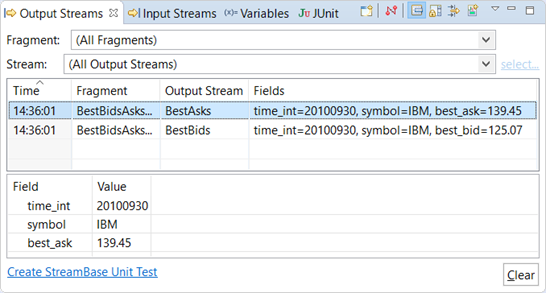
-
Press F9 or click the
 Stop Running Application button. This returns you to the SB Authoring perspective.
-
Select the
BestBidsAsks.sbappEventFlow module in the Project Explorer view. Right-click, and select > from the context menu. -
Fill in the fields of the New StreamBase Unit Test Class dialog:
Source folder The sample_bestbidsandasks/src/test/javafolder is entered for you.Package Enter com.example.sbjunit, or use a different Java package name that conforms to your site's standards.Name The name BestBidsAsksTest is entered for you. BBA_test1. This serves as the name for your Java test class and the Java source file to be created.Module under test The BestBidsAsks.sbappTest Method Body All tuples from the Input Streams and Output Streams views. Tuple Maker Class JSONSingleQuotesTupleMaker. 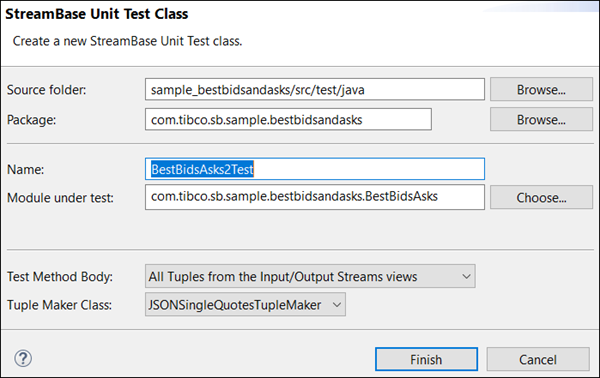
-
Click . Studio generates the JUnit test file named
BestBidsAsksTest.java, and opens the file in Studio. -
Inspect the
BestBidsAsksTest.javatest file. Notice that:-
The wizard inspected the specified EventFlow file and found one input stream. It generated one example tuple for this input stream, using generated values that match the data type of each field in the input stream's schema.
-
The wizard inspected the specified EventFlow file and found two output streams. It generated two
Expecterobjects for the module's output streams.
-
-
Save the BestBidsAsksTest
.javatest file, and click the Run button in the Studio toolbar.
-
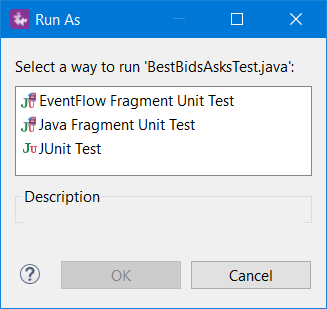
The first time the test is run, Studio prompts you to specify the test type. Select and click .
-
Studio runs the test file. The test starts StreamBase Server, loads the
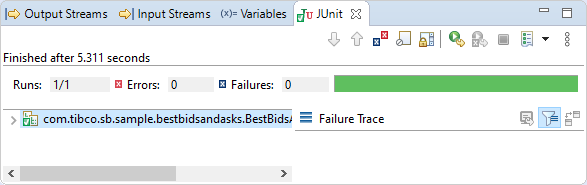
BestBidsAsks.sbappmodule, sends the specified tuple to input streamNYSE_Feed, and compares the output emitted from output streamBestAsksto the tuple you specified for theExpecterobject.Look for the long green bar in the JUnit view that indicates that the test passed.
-
Edit the test file, introducing a deliberate error. Change the 125.07 value to 124.07:
new Object[] { 20100930, "IBM", 124.07 }); -
Save and re-run the test. This time, Studio reports an error and shows the expected and received values:
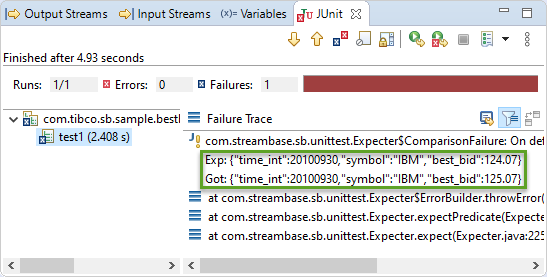
-
Click the
 Compare Actual button to hone in on the exact failure:
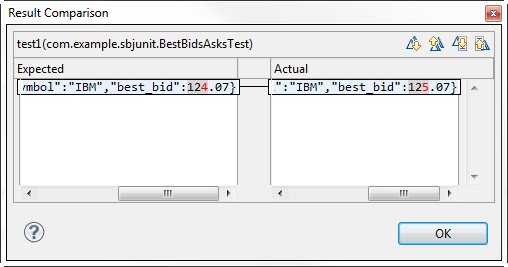
-
Edit the Java test file again and correct the error.
You can set breakpoints on both JUnit test code and EventFlow arcs for a module under test. Debugging the JUnit test then automatically switches between Java debugging and EventFlow debugging of the module under test.
To illustrate this feature, set two Java breakpoints in the BestBidsAsks.java file created in the previous section:
-
Set a breakpoint on the line that assigns a value to the
inputTupleAsJSONStringstring around line 50. -
Set another breakpoint on the first
Expecter expecterline.
In the BestBidsAsks.sbapp EventFlow file, set an EventFlow breakpoint on the arc exiting the input stream NYSE_Feed.
Now, follow these steps:
-
Switch back to the
BestBidsAsksJava file and run it using the Debug button ( )instead of the Run button.
-
This opens the Eclipse Debug perspective. Execution pauses at the first Java breakpoint.
-
In the Debug view, click the Continue button (
 ) or press F8. This opens the EventFlow Editor canvas and pauses execution at the first EventFlow breakpoint.
-
Press the Continue button again, or optionally step through the EventFlow module. In either case, execution returns to the Java file and pauses on the second Java breakpoint.
Not all features of Java debugging are implemented when debugging StreamBase JUnit test code. For example, those familiar with Java debugging in Eclipse might expect the following sequence to work:
-
When paused at the first Java breakpoint, click the Step Into (F5) button, which stops on the
enqueue()line. -
Click Step Return (F7) to return to the first breakpoint.
-
Click Step Into again to go back into the
enqueue()implementation.
Instead, pressing Step Return takes you to the EventFlow file.